YourFriend - User Guide
IndexThe "twin" of PrivateText
For all the fuctionalities in which this app copies the behavior of PrivateText  the reader is redirected to
the relative documentation.
the reader is redirected to
the relative documentation.
The event monitor
The entire management of the event monitor (activation, deactivation and data analysis) is made inside the 'hidden area'.
Entering the hidden area
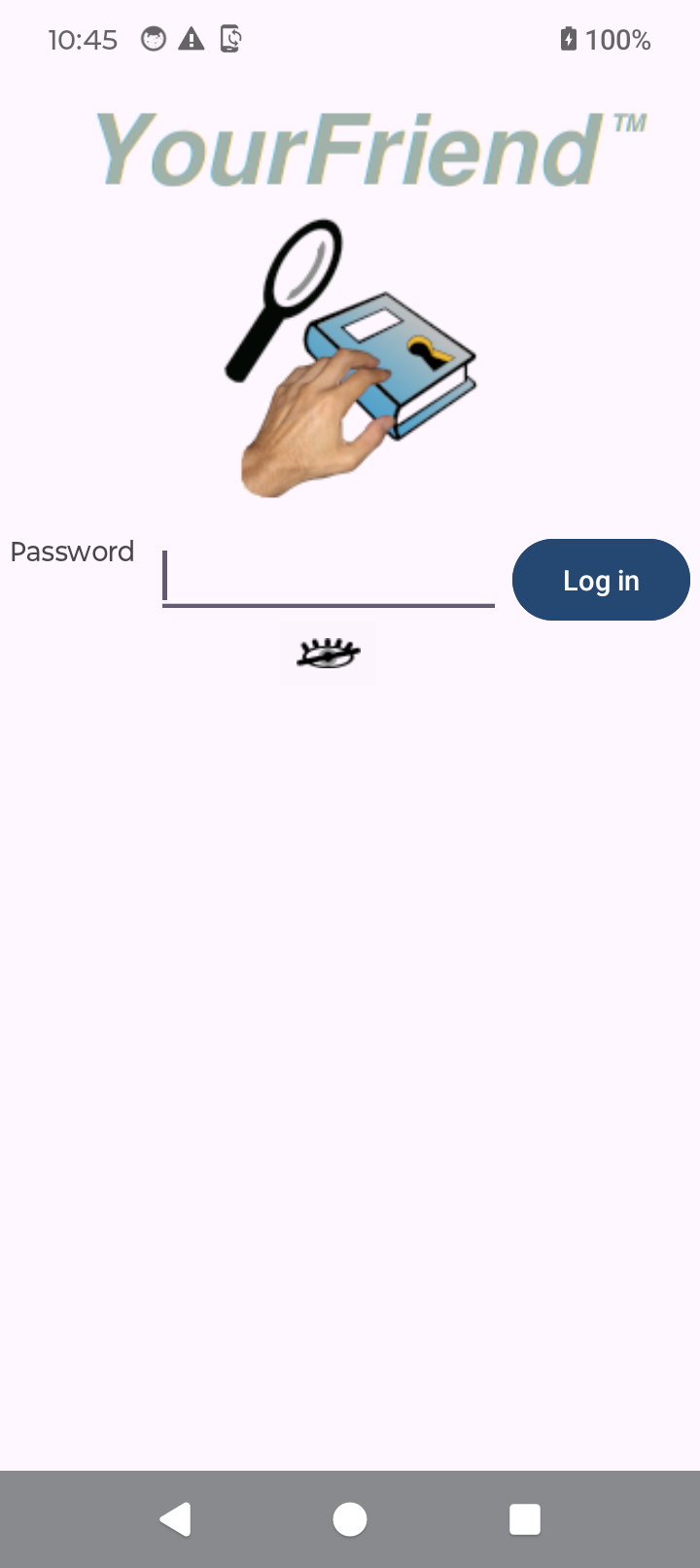
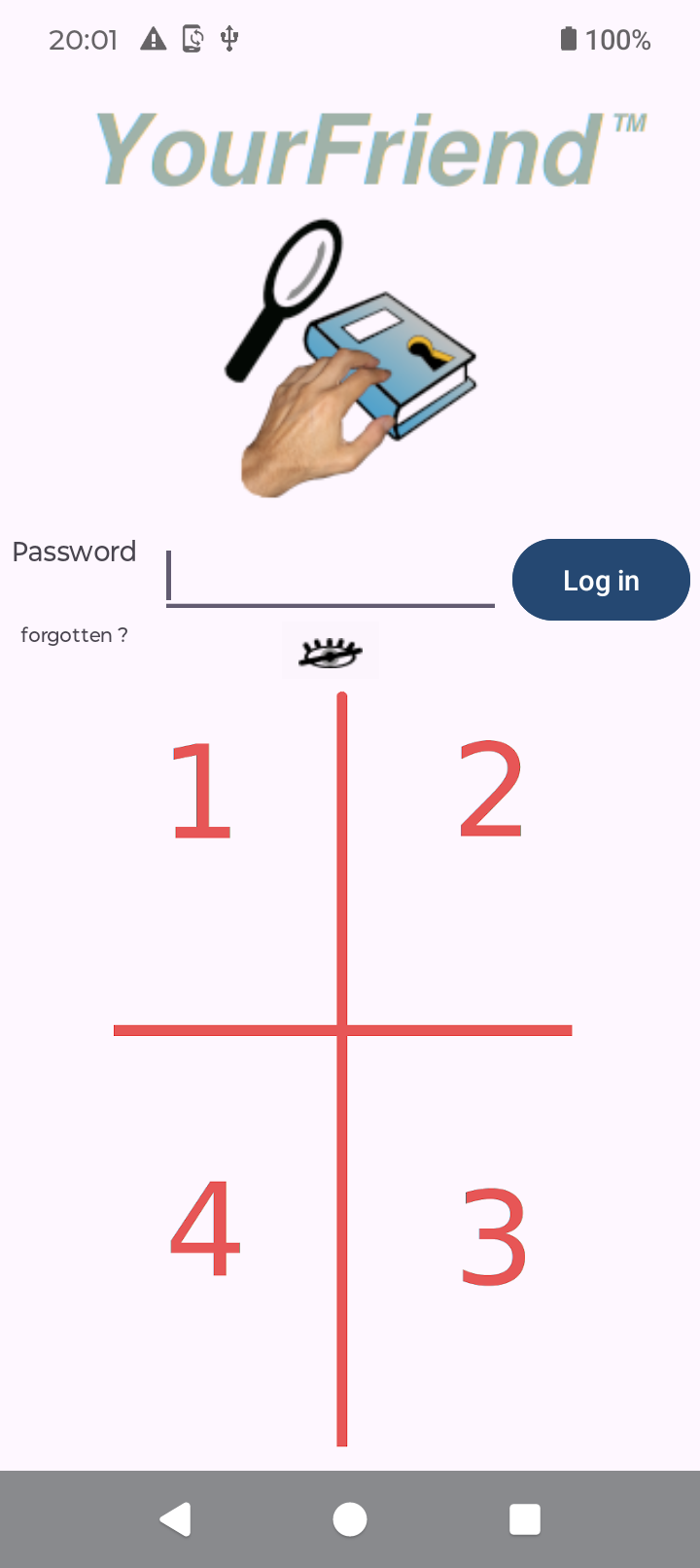
The login view, the first view of the app, presents a large empty area on the lower side of the page.
Here the user must imagine this area divided in four sub-areas, just like the red drawings, in the picture on the side, show.
Then the user must consider that the key for entering the secret session is a sequence of tap actions made on these imaginary subareas.
The default sequence the user might expect to submit, after the installation of the app, is composed by four taps made, by referring to the imaginary number of the picture, on 1, 2, 3, 4.
Obviously, the sequence must be customized, and we will see that below.
Here it is important to know that each time the user tries the 'touch-sequence', upon any suspected wrong sequence entered, the user must be waiting for, at least, 5 seconds before retrying.
The 'Event monitor' page
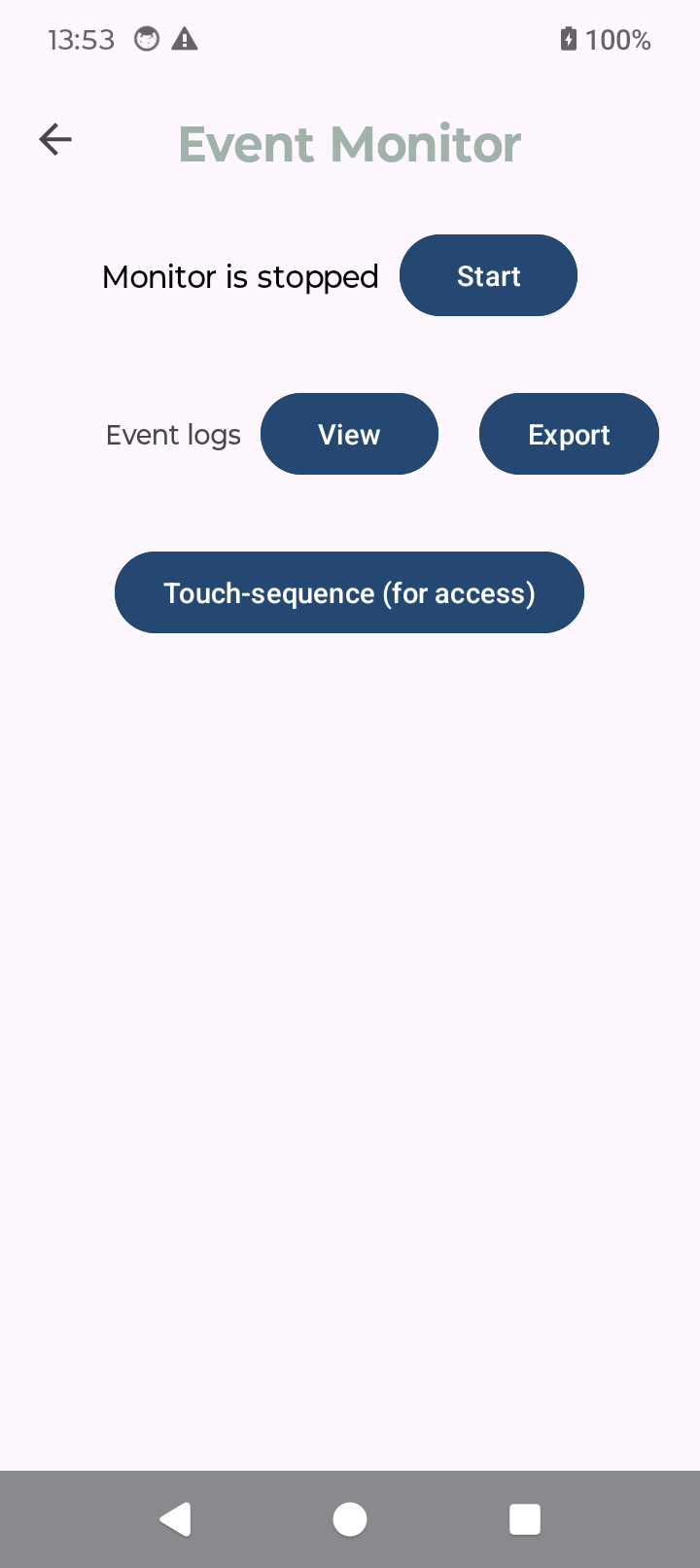
Once the touch-sequence has been successfully performed the user enters the 'Event monitor' page.
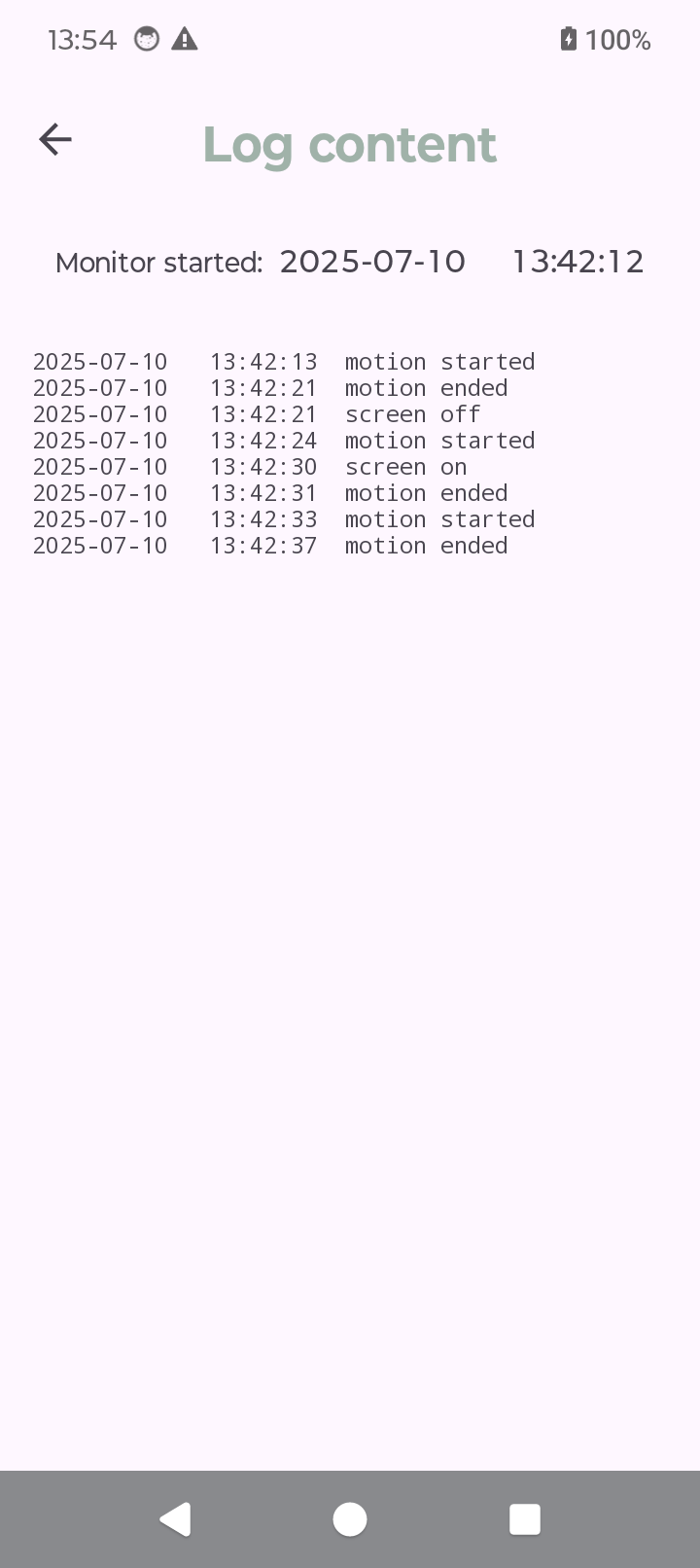
The 'Start' button allows to start the event monitor. Once started the monitor identifies all the instants in which the smartphone starts physically moving and all the instants in which it stops moving and detects even any screen-on/screen-off event, and stores the time of each event in a local log file, named like the time of the start of monitoring.
This means that one file is generated for each activation of the monitor.
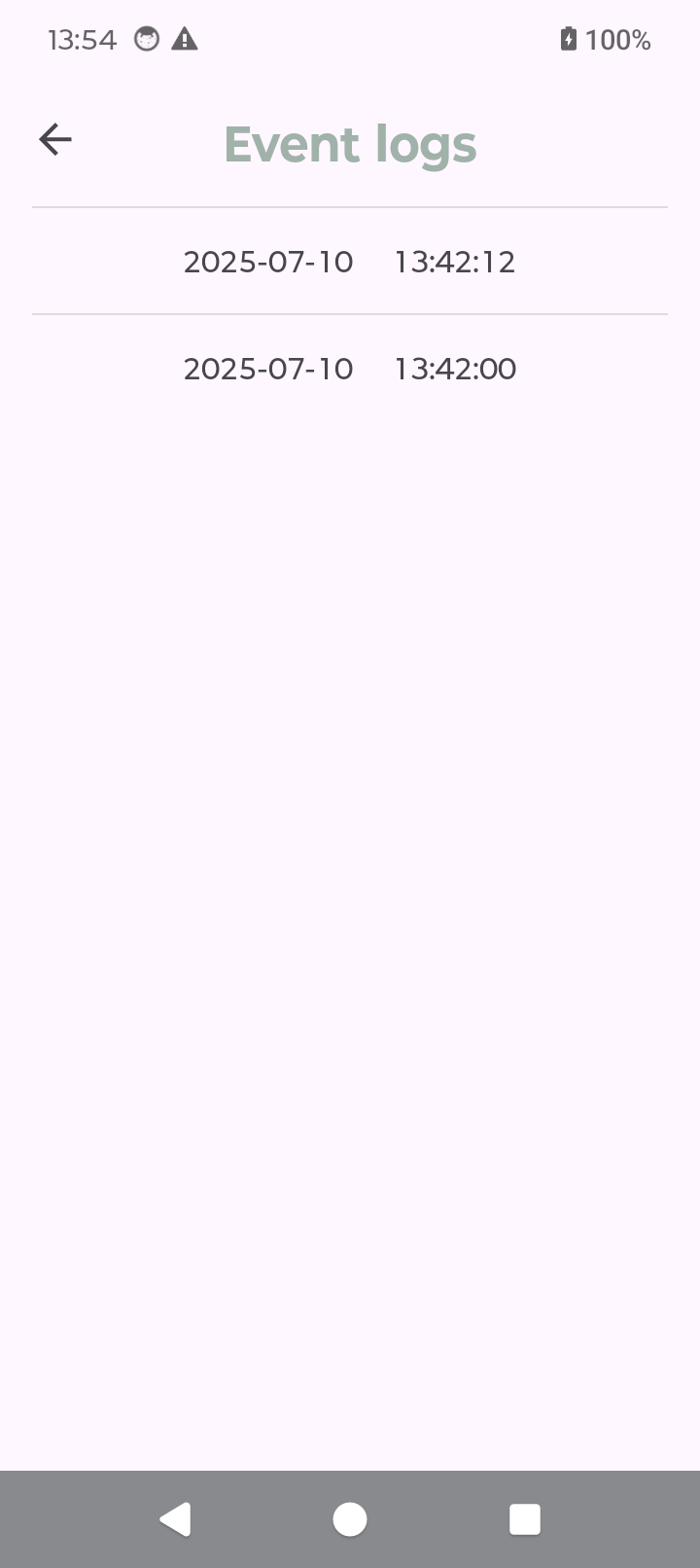
Once the Monitor has been stopped, the user can see the various logs by means of the 'View' button next to the 'Event logs' label. The list presented is organized in a reversed chronological order.
With the 'Export' button the user gets the generation of a unique text file containing all the event logs and its delivering to the system sharing feature.
The 'Touch sequence' button is described down this page.
The log content
It can be reached by touching the corresponding row on the list of motion logs and shows the chronological sequence of the start/end transition events.
Setting the touch-sequence
The 'Touch-sequence' button, within the Event Monitor page, allows setting the Touch-sequence.
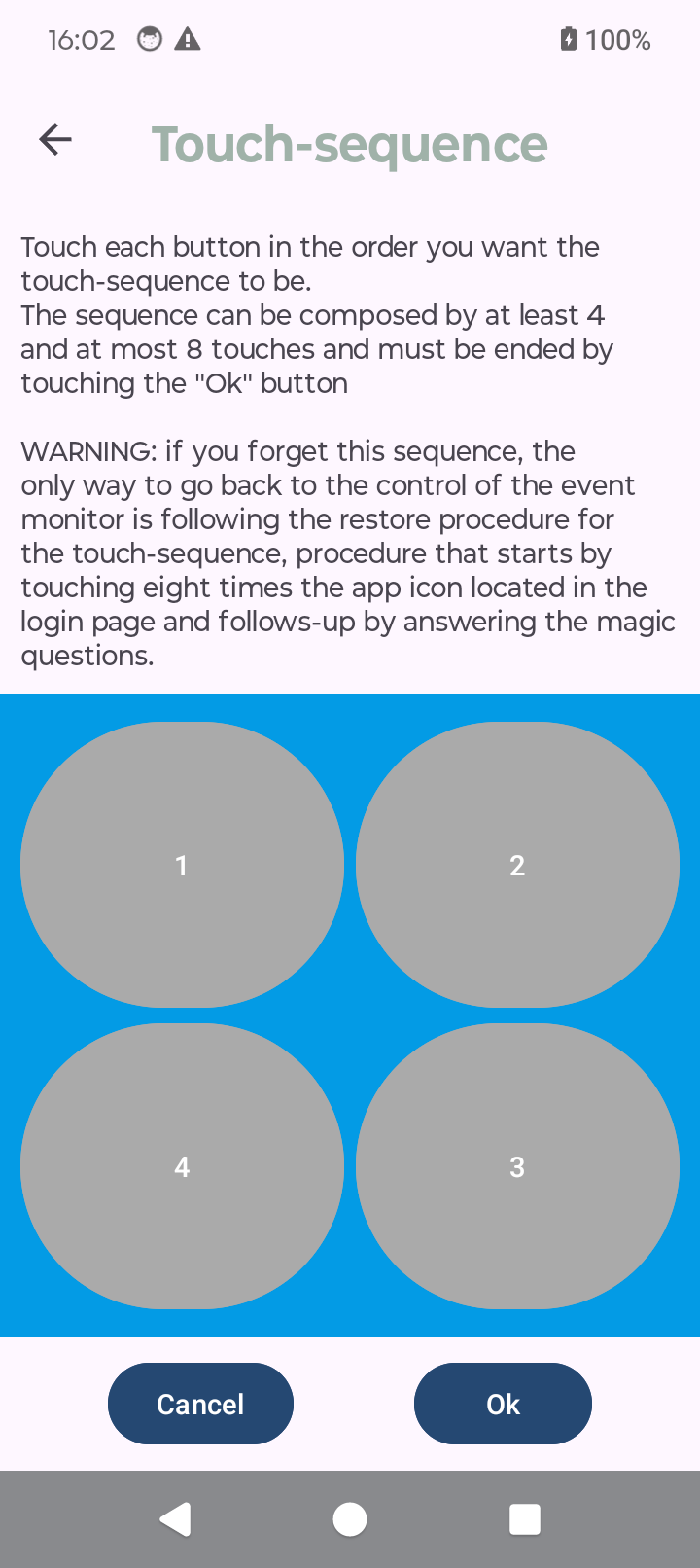
Here is presented, for your convenience, the text located at the top of the reached view:
<< Touch each button in the order you want the touch-sequence to be.
The sequence can be composed by at least 4 and at most 8 touches and must be ended by touching the "Ok" button
WARNING: if you forget this sequence, the only way to go back to the control of the event monitor is following the restore procedure for the touch-sequence, procedure that starts by touching eight times the app icon located in the login page and follows up by answering the magic questions. >>
After a first tracking of the new sequence, the user is required to repeat the sequence for confirmation and if the two sequences are equal, the newly defined sequence is on place.